Monday, November 22, 2021

How to Solve Yanhua Digimaster3 Occurs “(1E0F) Not find device” Error

Question
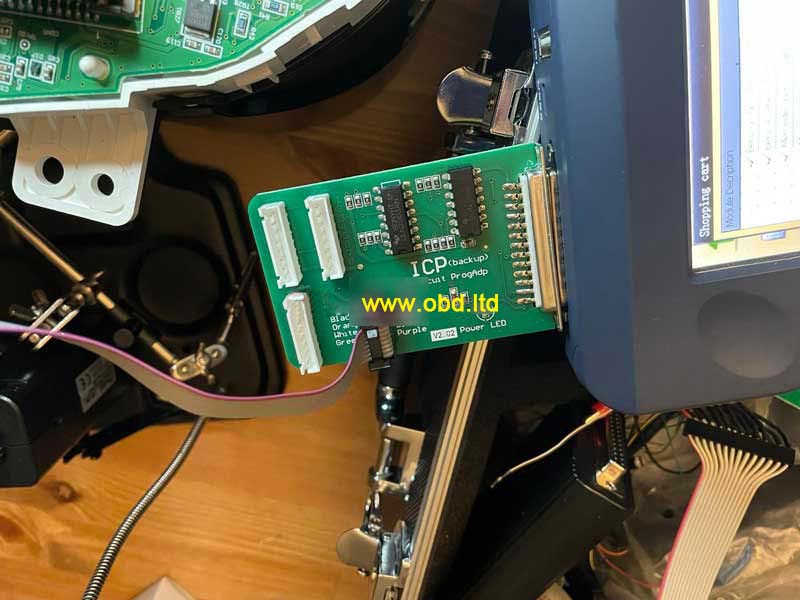
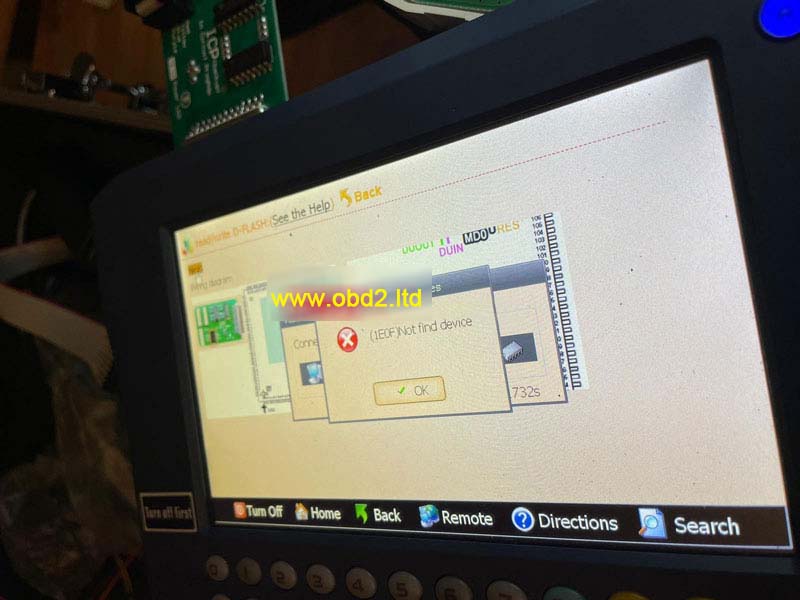
I tried to connect Yanhua Digimaster 3, but the ICP adapter is not responding. The LED light won’t light up and it gives me an error: “(1E0F) Not find device”.

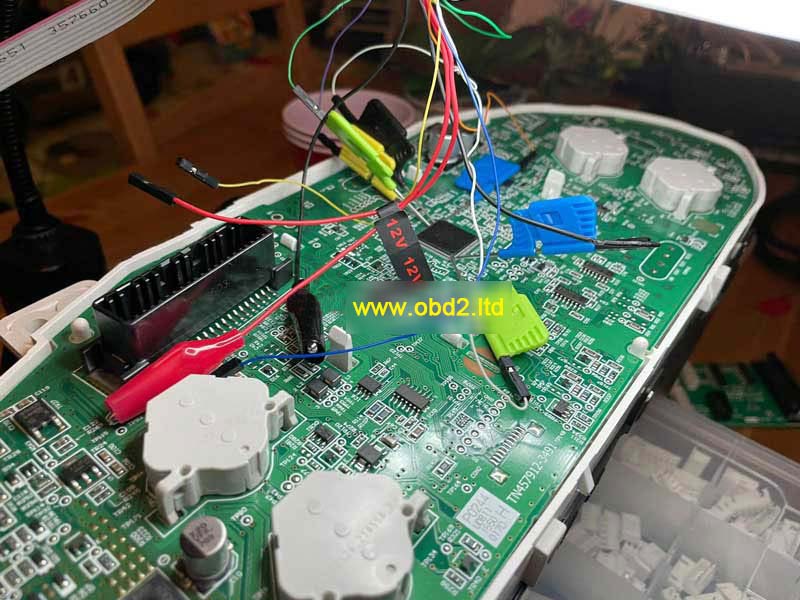
This is my connection, what’s the problem, please help.

How-to-Solve-Yanhua-Digimaster3-Occurs-“(1E0F)-Not-find-device”-Error-1
How-to-Solve-Yanhua-Digimaster3-Occurs-“(1E0F)-Not-find-device”-Error-2
How-to-Solve-Yanhua-Digimaster3-Occurs-“(1E0F)-Not-find-device”-Error-3

Engineer Replies
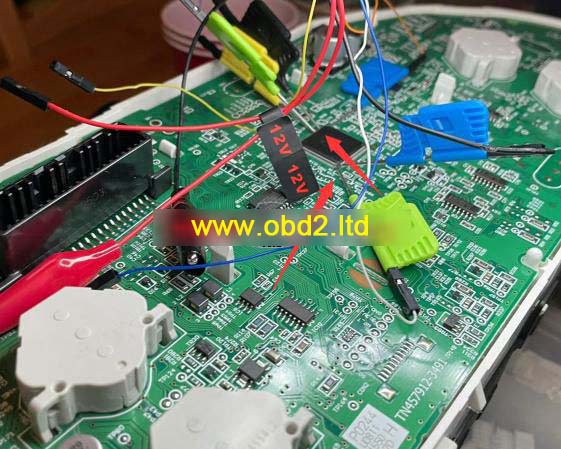
The reason why Digimaster3 failed to connect is because of the touching pin on board. This kind of pin is in bad contact. It is suggested to use wiring for connection.

In case you have same problem, simply check the connection carefully. Make sure your wiring is connected to correct position.

How-to-Solve-Yanhua-Digimaster3-Occurs-“(1E0F)-Not-find-device”-Error-4

Digimaster III poor contact issue was solved.

Monday, November 15, 2021

How to operate Digimaster 3

How to operate Digimaster 3

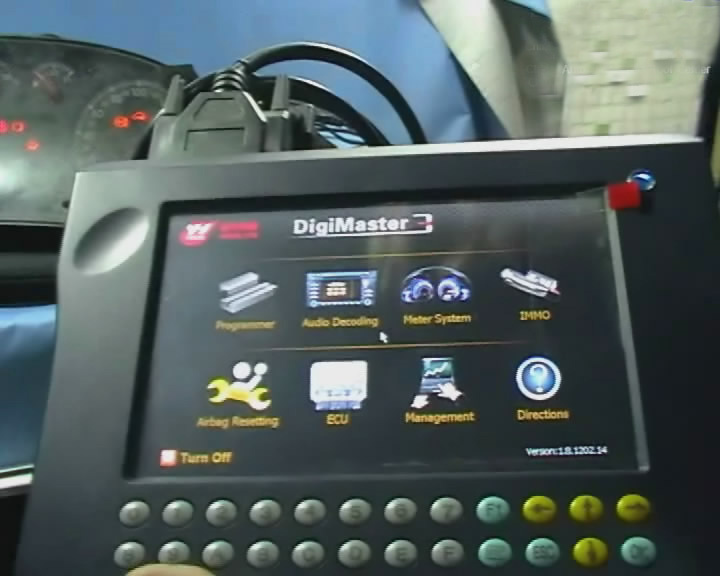
Step 1. digimaster 3 function menu

How-to-operate-Digimaster-3-1

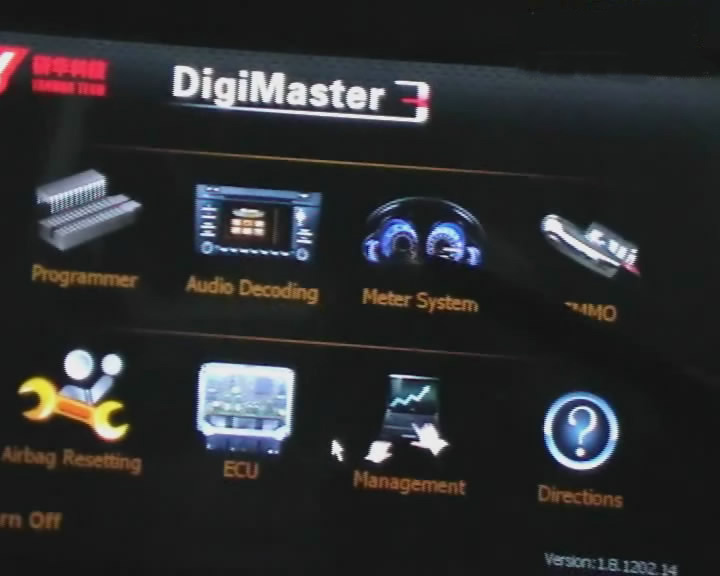
Step 2. digimaster 3 function

How-to-operate-Digimaster-3-2

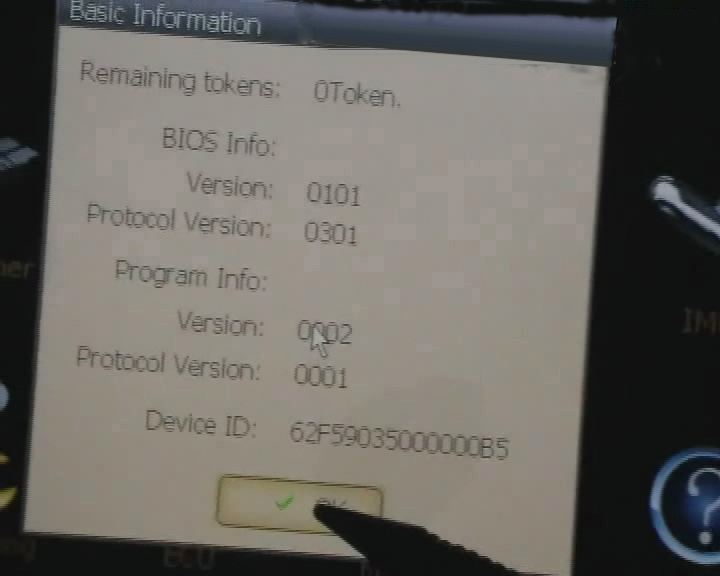
Step 3. digimaster 3 basic info

How-to-operate-Digimaster-3-3

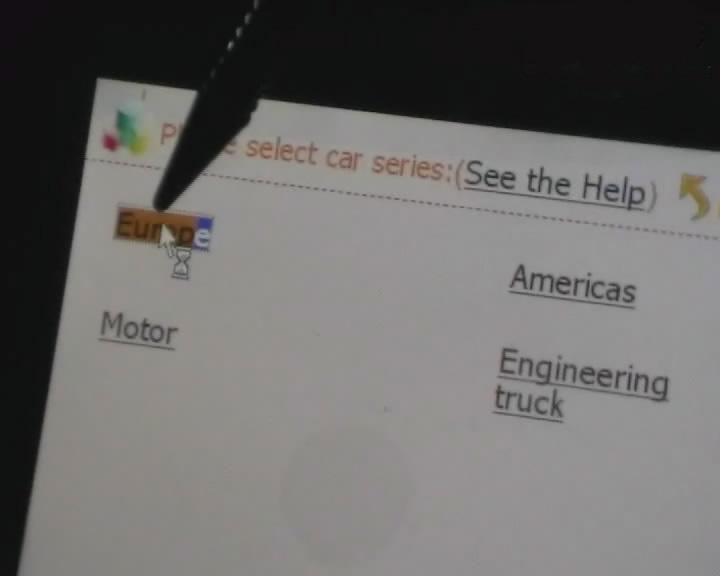
Step 4. digimaster 3 select car series

How-to-operate-Digimaster-3-4

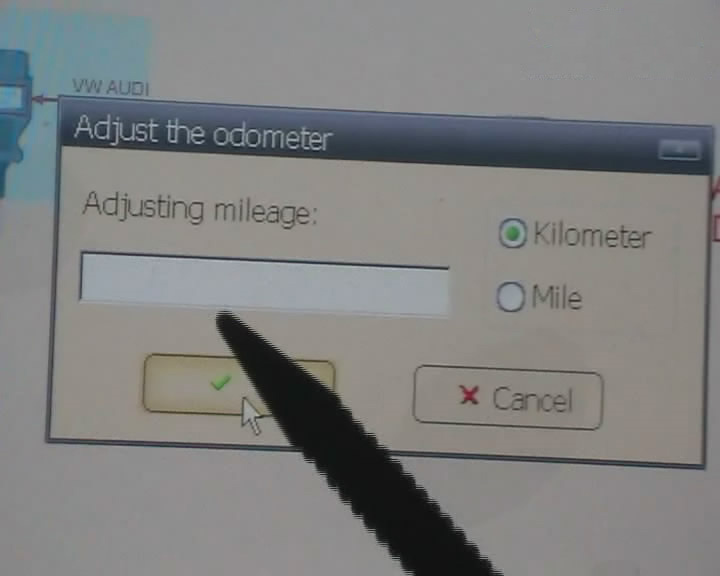
Step 5. digimaster 3 adjust odometer

How-to-operate-Digimaster-3-5

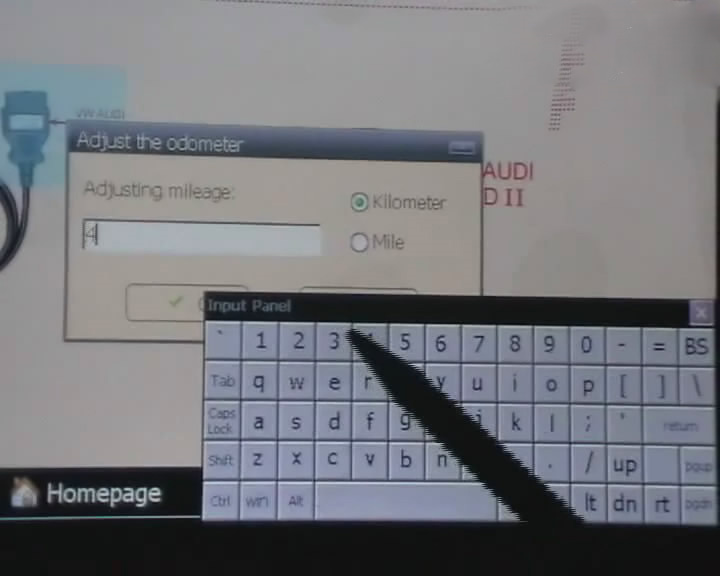
Step 6. digimaster 3 adjust odometer

How-to-operate-Digimaster-3-6

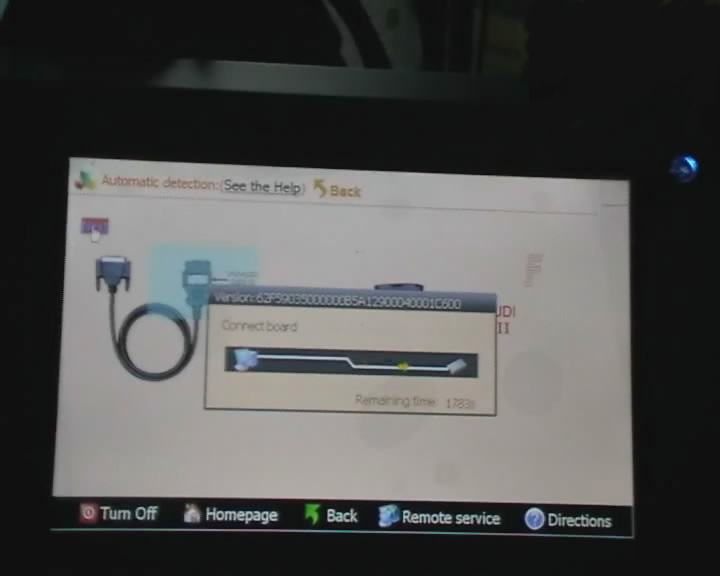
Step 7. digimaster 3 adjust gls

How-to-operate-Digimaster-3-7

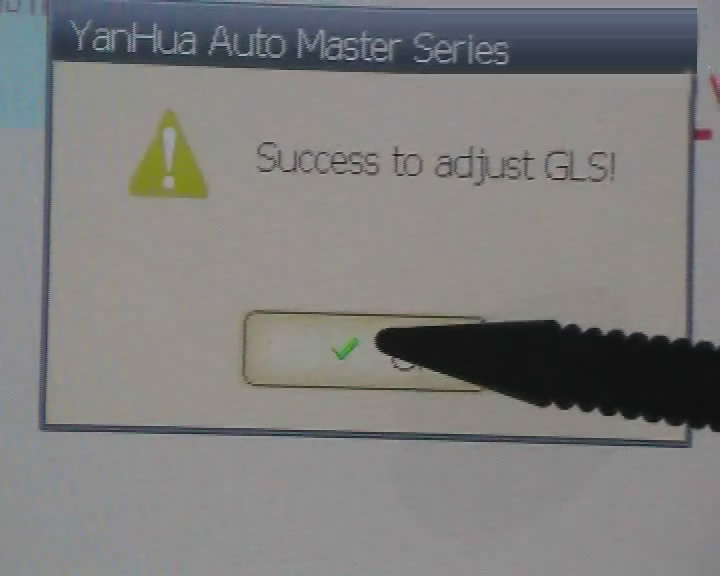
Step 8. digimaster 3 success adjust gls

How-to-operate-Digimaster-3-8

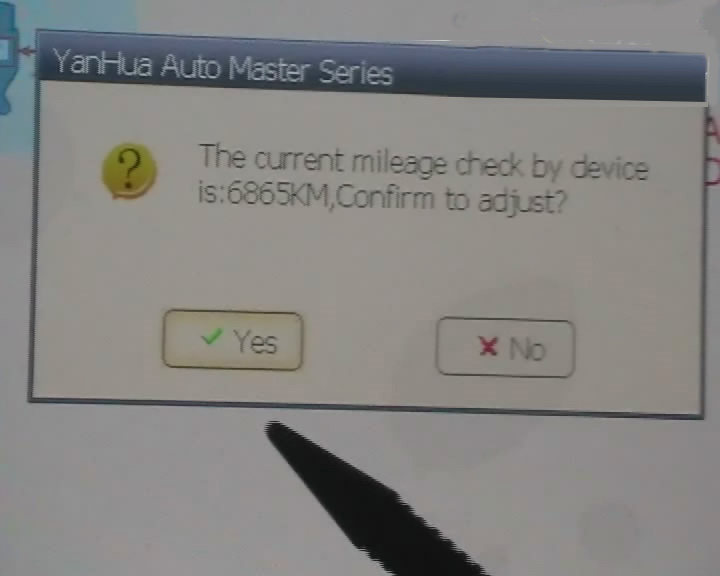
Step 9.  digimaster 3 adjust mileage

How-to-operate-Digimaster-3-9

Digimaster 3 Update Kernel
After update EBOOT, it is necessary to update kernel.
Tips: Before update EBOOT, please install D3 TOOL first.
Step 1: Press button number 8 and button OK at the same time, and turn the power on. When you see “Press OK to confirm and continue update Firmware” press OK, then it enter the procedure of updating.
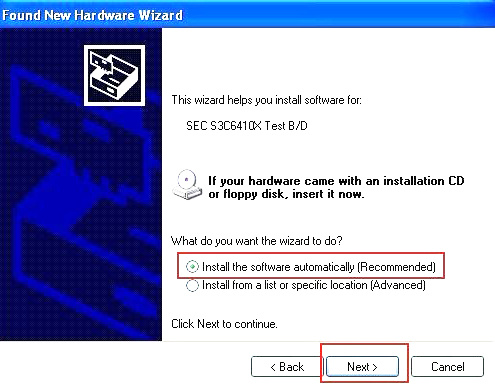
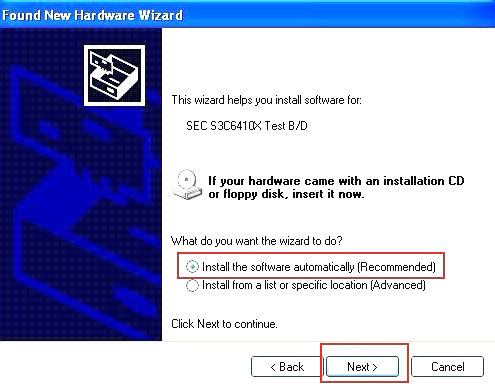
Step 2: Connect D3 with a computer through Mini USB (purple color), you can see a tip “Found New Hardware wizard”.As the image shown below.

How-to-operate-Digimaster-3-10

Step 3: choose “install the software automatically”, click “click”
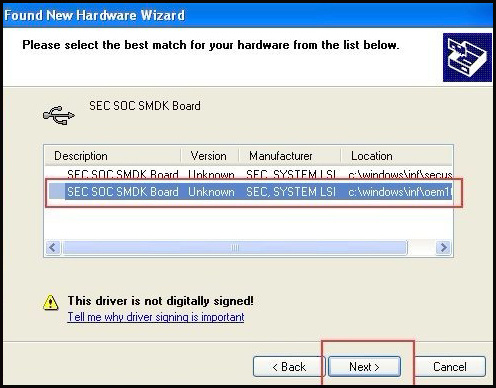
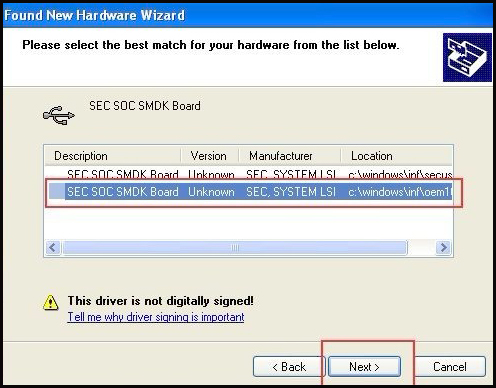
Step 4:  If DIGIMASTER 3 have been installed already, choose the second “SEC SOC SMDK Board” in dialog box as shown below, and click “Next” to complete driver installation.

How-to-operate-Digimaster-3-11

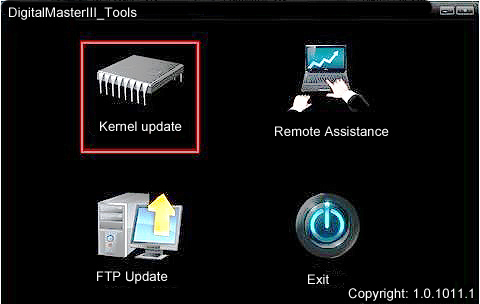
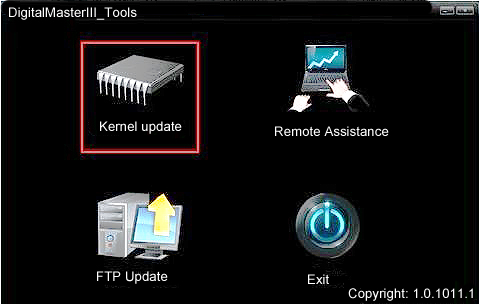
Step 5:Double-click Digimaster 3 PC Tools and choose “Kernel Update”.

How-to-operate-Digimaster-3-12
How-to-operate-Digimaster-3-13

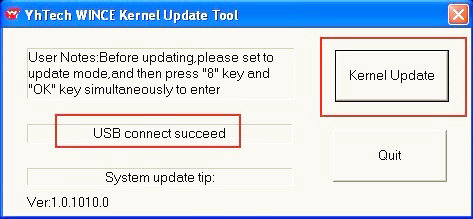
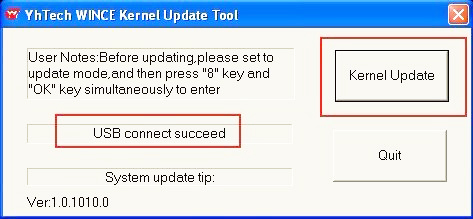
Step 6: Make sure the purple Mini USB is connected, then you can see ” USB connect succeed”

How-to-operate-Digimaster-3-14

Step 7: click “Kernel Update” and choose “EBOOT_20110427.bin” then click “OK” to start EBOOT program update.

Step 8: After 10sec. the DIGIMASTER 3 screen appears a twinkling red ‘YH’ logo which means EBOOT update is complete.
After update EBOOT successfully, please turn the power off and choose a appropriate way to update the kernel.
TIPS: Please uninstall the anti-virus software and firewall temporarily in order to run the software normally.

How-to-operate-Digimaster-3-15

After Update EBOOT, Still Not Work?
Second way, please operate by following the next tips:
1.Remove SD card from D3 to cardreader,and connect to PC. After successful connection, click “Removable Disk(E:)” as showed in the picture.
2. Delete the old file “YHTech” which is inSD card.
3. Copy the “YHTech” files from CD, and save it in SD card.
4. Please insert SDcard into D3 after successfully copy and paste. Then connect to network andturn on D3, click “OK” for downloading when appear remark of “Pleaseconnect network download hypervisors!” in the interface. It can befunctioned after successful download.”

Note:

1) When you use digimaster3 ck1200, if the following error appears, this is IP restriction,
Please tell us, we will help you remove restriction according to IP.

How-to-operate-Digimaster-3-17

2) The following digimaster3 BMW adapter has not been concluded:

How-to-operate-Digimaster-3-18

Now it is replaced by this one:

3) Digimaster 3 English version doesn’t have TMS370 Programmer adpater, only Chinese version has.

How-to-operate-Digimaster-3-19


Monday, November 8, 2021

Digimaster3 Change Hyundai Santa FE 2018 Mileage

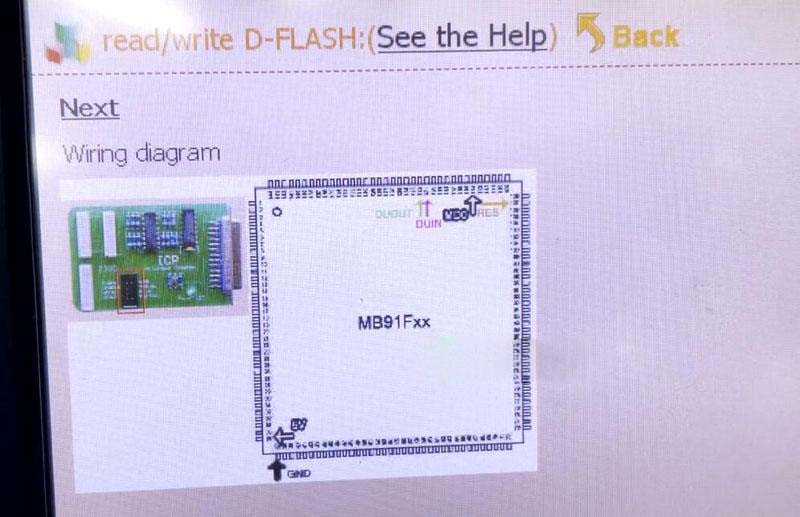
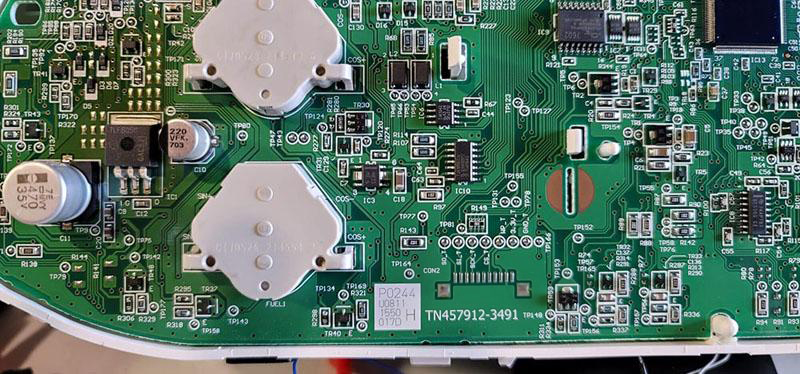
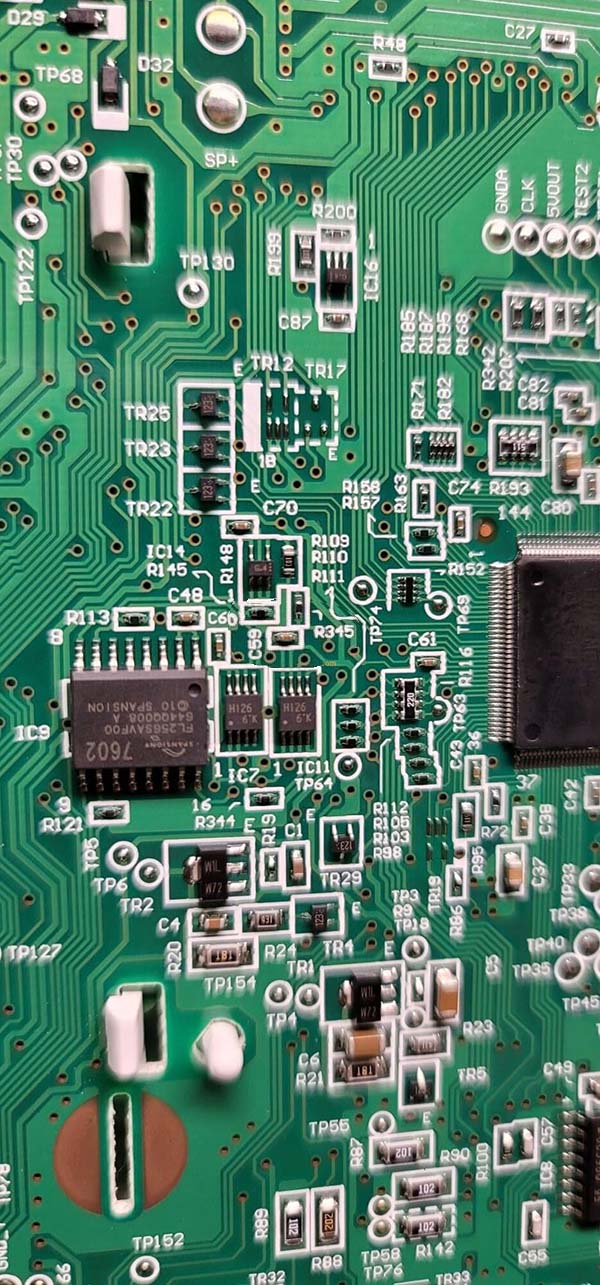
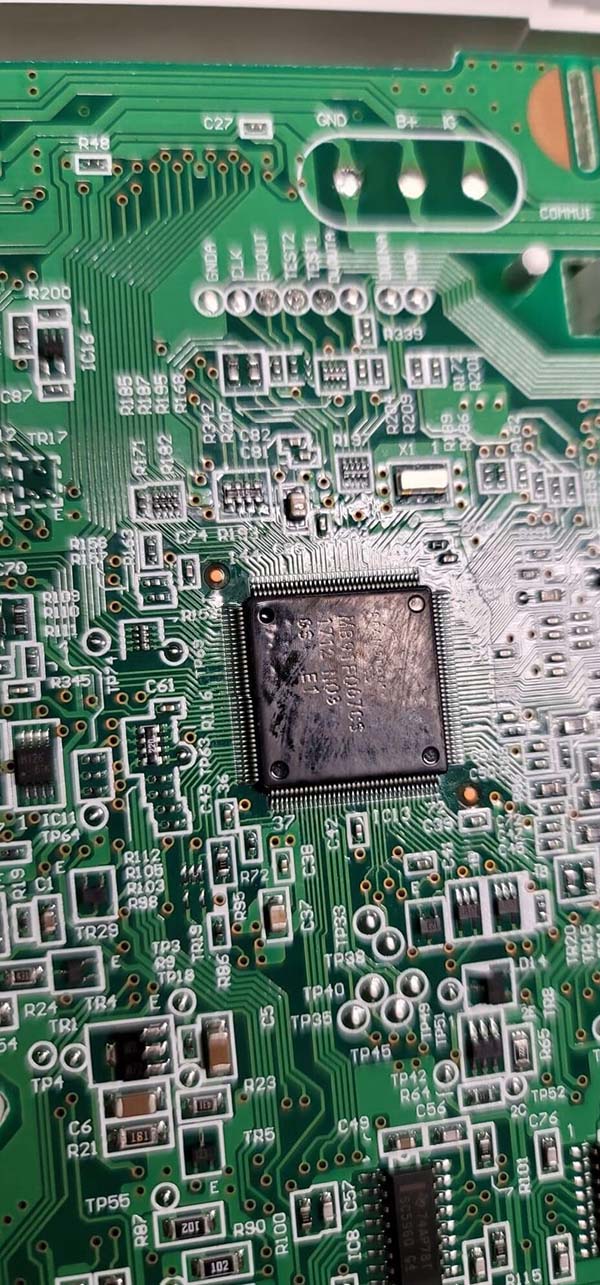
Tested reportYanhua Digimaster3 can correct odometer for Hyundai Santa FE 2018.
one chip type is MB91F067BS and another chip is HI26.

Digimaster III is capable of changing mileage on this model. But it doesn’t have wiring diagram. Need to find yourself wiring connections.

Then follow this path to correct mileage.
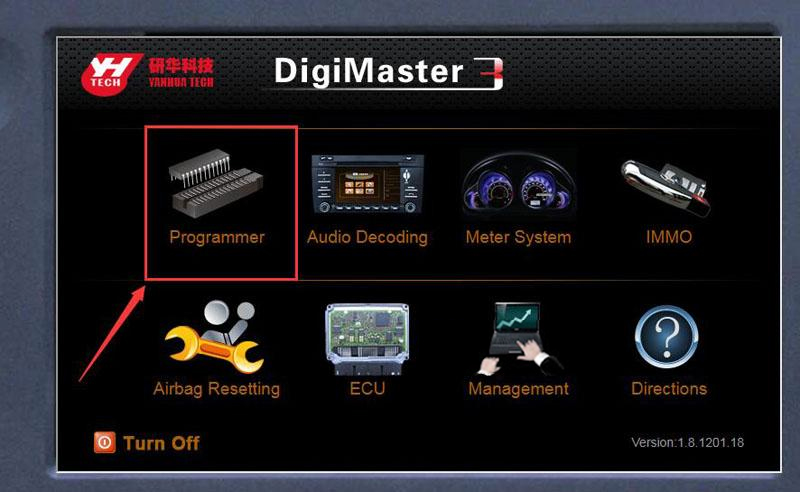
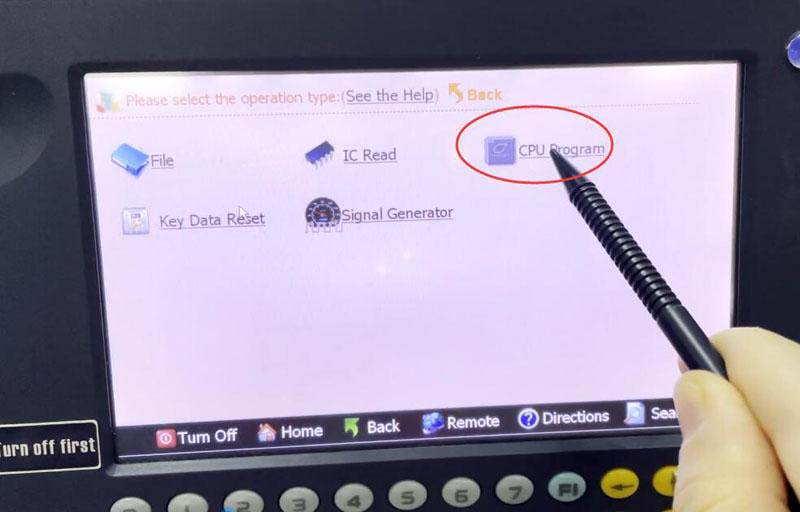
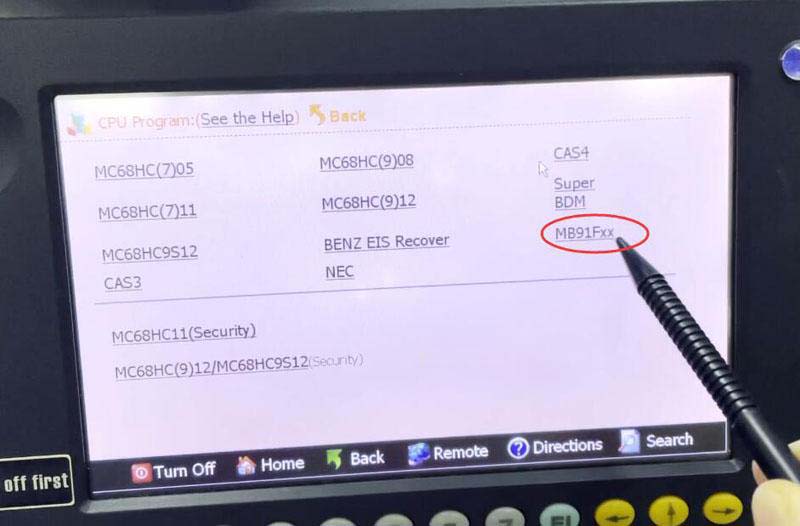
Programmer- CPU Program- MB91Fxx

Digimaster3-Change-Hyundai-Santa-FE-2018-Mileage-1
Digimaster3-Change-Hyundai-Santa-FE-2018-Mileage-2
Digimaster3-Change-Hyundai-Santa-FE-2018-Mileage-3
Digimaster3-Change-Hyundai-Santa-FE-2018-Mileage-4
Digimaster3-Change-Hyundai-Santa-FE-2018-Mileage-5
Digimaster3-Change-Hyundai-Santa-FE-2018-Mileage-7
Digimaster3-Change-Hyundai-Santa-FE-2018-Mileage-8

Save data, send data, original mileage and mileage you desired directly to Yanhua technician. They will modify data for you.
loading..

Monday, November 1, 2021

Update Kernel Instructions for Digimaster 3 Odometer Correction Tool

Original Digimaster 3 also called Digimaster III or shortly D3 works with various types of adapter you can easily achieve odometer correction, Audio decoding, airbag resetting, engine ECU resetting, IMMO, programming key for Benz &BMW etc.

After update EBOOT, it is necessary to update kernel.

Tips: Before update EBOOT, please install D3 TOOL first.

Step 1: Press button number 8 and button OK at the same time, and turn the power on. When you see “Press OK to confirm and continue update Firmware” press OK, then it enter the procedure of updating.

Step 2: Connect D3 with a computer through Mini USB (purple color), you can see a tip “Found New Hardware wizard”.As the image shown below.

Update-Kernel-Instructions-for-Digimaster-3-Odometer-Correction-Tool-1

Step 3: Choose “install the software automatically”, click “click”

Step 4: If DIGIMASTER 3 have been installed already, choose the second “SEC SOC SMDK Board” in dialog box as shown below, and click “Next” to complete driver installation.

Update-Kernel-Instructions-for-Digimaster-3-Odometer-Correction-Tool-2

Step 5:Double-click Digimaster 3 PC Tools and choose “Kernel Update”.

Update-Kernel-Instructions-for-Digimaster-3-Odometer-Correction-Tool-3
Update-Kernel-Instructions-for-Digimaster-3-Odometer-Correction-Tool-4

Step 6: Make sure the purple Mini USB is connected, then you can see ” USB connect succeed”

Update-Kernel-Instructions-for-Digimaster-3-Odometer-Correction-Tool-5

Step 7: click “Kernel Update” and choose “EBOOT_20110427.bin” then click “OK” to start EBOOT program update.

Step 8: After 10sec. the DIGIMASTER 3 screen appears a twinkling red ‘YH’ logo which means EBOOT update is complete.

After update EBOOT successfully, please turn the power off digimaster 3 and choose a appropriate way to update the kernel.

Be attention : Please uninstall the anti-virus software and firewall temporarily in order to run the software normally.

For more details and request, welcome to check our website directly : www.obd2tool.com